
Introduction
You buy a brand-new Mac and it flies. Apps open instantly, web pages load before you’ve finished thinking about them, and everything just feels smooth. Then, a year or two later, something shifts. Pages take a beat longer to load. Apps feel sluggish. Your storage is mysteriously fuller than it should be. Sound familiar?
One of the most common — and most overlooked — reasons for this slowdown is cache buildup. Learning how to clear cache on Mac is one of the simplest, most effective maintenance tasks any Mac user can perform, and yet most people never do it because they’re not sure where to start or what exactly they’re deleting.
This guide removes all the uncertainty. By the time you finish reading, you’ll know exactly what cache is, why it builds up, what it’s safe to delete, and precisely how to clear cache on Mac across every major area — browser, system, application, and DNS. No third-party tools required, no technical background needed. Just clear, actionable steps that anyone can follow.
What Is Cache and Why Does It Pile Up on Your Mac?
The Purpose of Cache Files
Cache files are temporary data that your Mac and its applications store locally to speed things up. When you visit a website, your browser saves copies of images, scripts, and page elements so the next visit loads faster. When you open an app repeatedly, macOS stores certain data so the app doesn’t have to rebuild everything from scratch each time.
In theory, caching is a good thing. It makes your Mac faster and more responsive by reducing the amount of data that has to be fetched or processed fresh each time. The problem is that cache files accumulate quietly in the background, and over months and years, they can add up to gigabytes of data — much of which is outdated, irrelevant, or simply never cleaned up.
When Cache Becomes a Problem
A small, well-managed cache is an asset. A large, bloated, outdated cache is a liability. Old cache files can cause apps to behave unexpectedly, display outdated content, or run more slowly as your Mac’s storage fills up. On Macs with smaller SSDs — 256GB models, for example — cache buildup can genuinely impact how much space you have available for actual work.
Knowing how to clear cache on Mac regularly gives you control over this process rather than letting it happen passively for years.
How to Clear Cache on Mac: Browser Cache
Safari: Apple’s Built-In Browser
Safari is the default browser on every Mac, and it stores a significant amount of cached data including website resources, login data, cookies, and browsing history. Clearing your Safari cache is quick and doesn’t require any technical skill.
Open Safari and click on Safari in the top menu bar, then select Settings (or Preferences on older macOS versions). Navigate to the Advanced tab and check the box that says “Show Develop menu in menu bar.” Once that’s enabled, click on the Develop menu that appears in the top bar and select “Empty Caches.” The process takes just a few seconds.
For a deeper clean, you can also go to Safari > Settings > Privacy and click “Manage Website Data” to see and remove the specific cookies and stored data that individual websites have saved on your Mac.
Google Chrome: The Most Popular Third-Party Browser
Chrome is widely used on Macs and tends to be one of the more aggressive cache builders. To clear cache on Mac in Chrome, open the browser and press Command + Shift + Delete to open the Clear Browsing Data window. Make sure the Cached images and files option is checked, choose a time range (select “All time” for a complete clean), and click Clear data.
For users who want granular control, Chrome also lets you view and manage stored data site by site through Settings > Privacy and security > Site settings > View permissions and data stored across sites.
Mozilla Firefox
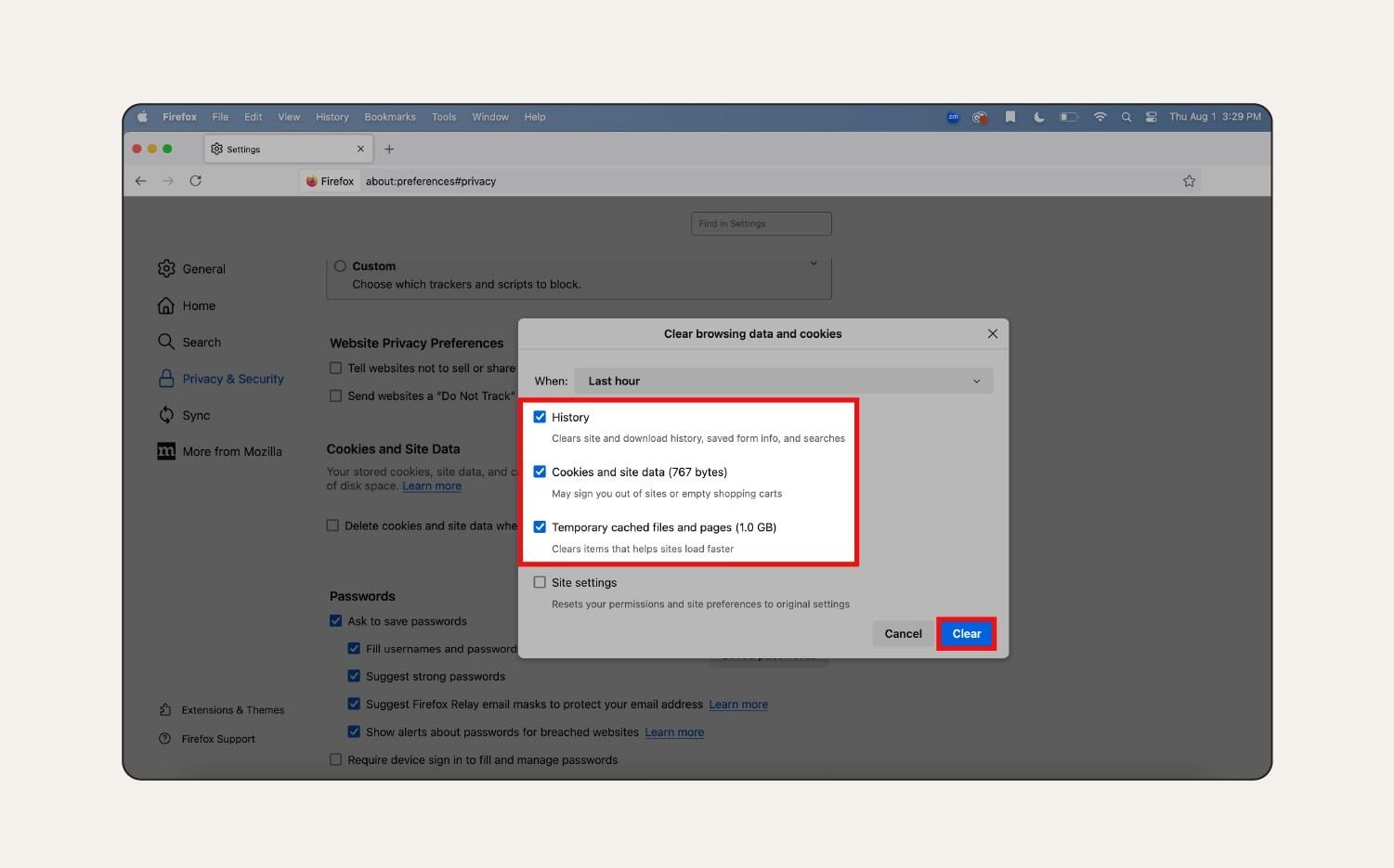
Firefox users can clear cached data by opening the browser, clicking the hamburger menu (three horizontal lines) in the top right, selecting Settings, then navigating to Privacy & Security. Scroll down to the Cookies and Site Data section and click Clear Data. Make sure Cached Web Content is checked before confirming.
Firefox also offers a helpful option to automatically clear cache when you close the browser, which is worth enabling if you want a cleaner browsing environment without thinking about manual maintenance.
How to Clear Cache on Mac: System and User Cache
Understanding the Mac Cache Folders
Beyond your browsers, macOS and every app you use creates its own cache folders stored in a specific location on your Mac’s drive. The primary location is the Library folder, which is hidden by default to prevent accidental deletion of important files.
There are two key cache locations on your Mac. The user-level cache — the one most relevant to everyday maintenance — lives at ~/Library/Caches. The tilde (~) represents your home folder. The system-level cache lives at /Library/Caches and is shared across all user accounts on the machine.
Manually Deleting User Cache Files
To access and manually clear cache on Mac at the system level, open Finder and click Go in the top menu bar. Hold down the Option key and you’ll see the Library option appear in the dropdown. Click it. Inside the Library folder, open the Caches folder.
What you’ll see is a collection of folders, each named after an application or macOS process. These contain the cached files those applications have created over time. You can safely delete the contents inside individual app folders — not the folders themselves, just their contents. Select the files inside a specific app’s cache folder, move them to the Trash, and then empty the Trash.
A good approach is to start with the apps you use least or the folders that are taking up the most space. The cache will rebuild automatically the next time you use the app — just as it should — but without the years of accumulated clutter.
Using the Go to Folder Shortcut
A faster way to access your cache is to open Finder, press Command + Shift + G, and type ~/Library/Caches in the box that appears, then press Enter. This takes you directly to the user cache folder without needing to navigate through the Library manually.
The same shortcut works for /Library/Caches if you want to access system-level cache — though on modern versions of macOS, Apple restricts access to some system folders for security reasons, and you may need administrator credentials.
How to Clear Cache on Mac: Application-Specific Cache
Why App Cache Deserves Its Own Attention
Every app on your Mac builds its own cache independently. Creative apps like Adobe Photoshop or Final Cut Pro can build enormous caches because they store preview files, render data, and project thumbnails. Communication apps like Slack, Microsoft Teams, and Zoom store message history caches, media files, and call data. Even the App Store builds its own download cache.
Knowing where these live and how to manage them is an important part of keeping your Mac running well, especially if you’re a creative professional whose Mac is under heavy daily use.
Clearing Slack Cache on Mac
Slack is one of the most notorious cache builders on Mac. Over time, especially in active workspaces, Slack can consume several gigabytes of storage. To clear the Slack cache, navigate to ~/Library/Application Support/Slack/Cache and delete the contents of the Cache folder. Alternatively, Slack has a built-in option under Help > Troubleshooting > Clear Cache and Restart that handles this automatically.
Clearing Zoom Cache on Mac
Zoom stores its own cache in a similar location. Open Finder, press Command + Shift + G, and navigate to ~/Library/Application Support/zoom.us. Inside that folder, you’ll find cached files related to meeting recordings, profile images, and meeting data. Clearing these is safe and can recover meaningful amounts of storage.
Mail App Cache
Apple’s built-in Mail app maintains a local cache of your emails and attachments. Over time, this folder can become quite large. You can access it at ~/Library/Mail and ~/Library/Containers/com.apple.mail. Before deleting anything in the Mail cache, make sure your mail is fully synced with your email provider so nothing is at risk of being lost permanently.
How to Clear DNS Cache on Mac
What Is DNS Cache and Why Should You Clear It?
The Domain Name System (DNS) cache is a slightly different type of cache that stores records of websites your Mac has visited, mapping domain names to their IP addresses. Clearing the DNS cache on your Mac can resolve issues like websites failing to load correctly, incorrect page versions appearing, or error messages when trying to access sites you know are online.
It’s also a useful step when troubleshooting network connectivity problems, and it’s completely safe to do — your Mac will simply rebuild the DNS cache automatically as you browse.
How to Flush the DNS Cache on Mac
To clear the DNS cache on Mac, you need to use Terminal, which is found in Applications > Utilities > Terminal. Open Terminal and type the following command, then press Enter:
sudo dscacheutil -flushcache; sudo killall -HUP mDNSResponder
You’ll be prompted to enter your administrator password. Type it in (the cursor won’t move as you type — that’s normal) and press Enter. You won’t see a confirmation message, but the DNS cache will have been cleared. This command works on macOS Monterey, Ventura, Sonoma, and Sequoia.
How to Clear Cache on Mac: Font Cache
The Overlooked Font Cache
Font cache is one of the least-known types of cache on a Mac, but it can cause genuinely bizarre behavior — fonts displaying incorrectly, apps crashing on launch, or strange visual glitches in text-heavy applications like Pages, Word, or design software.
To clear the font cache, the safest method is to restart your Mac in Safe Mode. Hold down the Shift key immediately after pressing the power button (or, on Apple Silicon Macs, hold the power button until startup options appear, then hold Shift and click Continue in Safe Mode). Safe Mode automatically clears the font cache as part of its startup process. Once you’re in Safe Mode and your Mac has loaded, simply restart normally and the font cache will be fresh.
How Often Should You Clear Cache on Mac?
Finding the Right Maintenance Rhythm
There’s no single correct answer, because it depends on how heavily you use your Mac and what you use it for. A casual user who browses the web, writes documents, and sends emails might be perfectly fine clearing their browser cache once a month and performing a deeper system cache clean every three to six months.
A creative professional who runs video editing software, large design applications, and multiple browsers simultaneously might benefit from clearing cache more frequently — perhaps browser cache every two weeks and a full system cache review monthly.
The most practical approach is to make it a habit tied to something you already do — for example, checking your cache when you notice your Mac slowing down, when storage drops below a threshold you’re comfortable with, or at the start of a new month as a simple routine check.
What You Should Never Delete
While clearing cache is generally safe, there are some areas to be careful about. Never delete your entire Library folder — only the contents of specific cache subfolders. Avoid deleting cache for apps that are currently running, as this can cause crashes. Don’t remove cache from apps whose data isn’t backed up elsewhere, particularly if you’re unsure whether the cache contains any unique, irreplaceable information.
The goal when you clear cache on Mac is targeted removal of clearly outdated temporary files, not a wholesale deletion of anything that sounds unfamiliar.
Should You Use a Third-Party Cache Cleaner?
The Case For and Against Cleaner Apps
Apps like CleanMyMac X, OnyX, and similar utilities promise to automate the process of clearing cache, removing junk files, and optimizing your Mac. They can be genuinely useful for users who find the manual process intimidating or time-consuming, and reputable tools in this category are safe to use.
However, there are a few things worth knowing. First, macOS is designed to manage much of its own cache intelligently — Apple’s operating system will clear system-level temporary files when storage pressure demands it. Second, some cleaning apps make promises they can’t keep, or prompt you to buy premium versions before performing any meaningful functions. Stick to well-reviewed, reputable tools if you go this route.
For most users, the manual methods described in this guide are entirely sufficient and give you greater control over exactly what you’re removing. Learning to clear cache on Mac manually also helps you understand your system better — a knowledge investment that pays off every time something unexpected happens with your Mac.
Conclusion
Cache buildup is one of the quietest contributors to Mac slowdowns, and clearing it is one of the easiest wins in Mac maintenance. Whether you’re dealing with a sluggish browser, an app that’s behaving strangely, a network connection that keeps throwing errors, or a storage bar that’s more full than it should be, knowing how to clear cache on Mac gives you a practical first step toward solving the problem.
The process doesn’t require any special software, doesn’t put your data at risk when done correctly, and takes far less time than most people expect. Start with your browser cache — that alone will often produce noticeable improvements. Then move to your user cache folder for a deeper clean, flush your DNS if you’re experiencing network issues, and set yourself a reminder to repeat the process every few months.
Your Mac was built to be fast, reliable, and long-lasting. Clearing cache regularly is how you hold up your end of that deal.
FAQs
Is it safe to clear cache on Mac?
Yes, it is generally safe to clear cache on Mac, provided you do it correctly. Browser cache, user application cache, and DNS cache are all safe to delete — your Mac and its applications will simply rebuild them automatically the next time you use them. The key precaution is to delete only the contents inside specific app cache folders, not the folders themselves, and never to touch folders outside of the Library/Caches directory unless you know exactly what you’re doing. For an extra layer of safety, you can restart your Mac after clearing cache to ensure everything initializes cleanly.
How much storage can I recover by clearing cache on Mac?
The amount of storage you can recover varies widely depending on how long you’ve gone without clearing cache and how heavily you use your Mac. Light users might recover a few hundred megabytes. Heavy users — particularly those running creative apps, multiple browsers, or communication tools like Slack — can often recover anywhere from 5 to 20 gigabytes or more. Browser cache alone on a heavily used Chrome installation can exceed 1 to 2 gigabytes. The best way to see what you’re dealing with is to open Finder, navigate to ~/Library/Caches, and sort the folders by size.
Will clearing cache delete my passwords or bookmarks?
No. Clearing cache does not delete your saved passwords, bookmarks, autofill data, or browser history unless you explicitly choose to clear those items at the same time. Browser cache — which consists of saved website files like images, scripts, and style sheets — is stored separately from your personal browsing data. In Safari, Chrome, and Firefox, you can selectively clear only the cache without touching passwords or history. macOS system cache is also completely separate from your personal data, documents, and account information.
How do I clear cache on Mac without losing any important data?
The safest approach is to use the targeted methods described in this article rather than wholesale deletion. For browsers, use the built-in Clear Cache or Empty Caches options rather than clearing all browsing data at once. For system cache, navigate to ~/Library/Caches and delete only the contents inside individual app folders — not the app folders themselves. Before clearing cache for any app that stores data locally (such as Mail), make sure that data is synced or backed up to a server or Time Machine backup. If you’re unsure about a specific file or folder, leave it alone and focus on the ones you clearly recognize.
How often should I clear cache on Mac?
For most users, clearing browser cache once a month and performing a full system cache review every three to six months is a reasonable routine. If you notice your Mac slowing down, running low on storage, or an app behaving unexpectedly, those are also good triggers to do a cache clear rather than waiting for a scheduled maintenance window. Heavy users of creative or communication apps may benefit from more frequent cache management — perhaps monthly for specific high-impact apps like Slack or Adobe products. There’s no harm in clearing cache more often than necessary; the only consequence is that your apps may load slightly slower the first time they rebuild their cache after a fresh clean.
Also Read
Apple Support – About caches in macOS
Apple Support – How to use Safe Mode on your Mac
How to Screenshot on Chromebook